

 |
|


Tigra Calendar PRO is highly configurable JavaScript Calendar offering high reliability and wide browsers support.
This script allows your visitors to pick any allowed date or timestamp from a nice looking calendar without typing.
Result is returned in a single text field in any format that you require. No more messing with date formats conversion.
Tigra Calendar PRO is ideal for web application with database back end such as hotel reservation, ticket booking and
others. Script is intuitive to use and easy to maintain.
Tigra Calendar PRO works with any browser that capable of generic DHTML.
Here is a table of the application compatibility:
| Browser | Modification of Calendar | ||
|---|---|---|---|
| modal | onpage | pop-up | |
| Windows 95/98/ME/2000/XP | |||
| MS IE 4+ | + | + | + |
| Netscape 6+ | + | + | + |
| Netscape 4.x | n/a | + | + |
| Opera 7.x | + | + | + |
| Opera 6.x | n/a | + | + |
| Opera 5.x | n/a | + | + |
| Mozilla 0.9+ | + | + | + |
| Safari 3+ | + | + | + |
| Mac OS 8/9/X | |||
| MS IE 5+ | + | + | + |
| Netscape 6+ | + | + | + |
| Netscape 4.x | n/a | + | + |
| Opera 6.x | n/a | + | + |
| Safari | + | + | + |
Base Tigra Calendar PRO distribution package includes all three calendar modes. Each mode is stored in separate folder and is independent from other ones. Distribution package contains the following directory structure:
Legend:
bold text - a directory
bold italic text - calendar files
Note that core calendar.js file is presented in all modes but it is not the same for all of them. So, pop-up functionality can not be expected from calendar.js file of modal or on-page modes and vice versa. All other same named files can be used with any mode each instead of other.
If on browsed HTML page Tigra Calendar PRO is normally either hidden with control icon to open, or always visible - depending on application mode chosen.
General concept of calendar work is the following:
There are 3 Tigra Calendar PRO modes:
This section helps to understand how the calendar is built inside and what are differences between various calendar modes.
Visually all calendars modes consist of the tree basic element:
In general, a call of calendar constructor generates a HTML table that contains certain set of the above basic visual elements. The most common relocation map of those elements is represented bellow:
| TEXT INPUT | CALENDAR ICON |
| POSITION ELEMENT |
The CALENDAR ICON cell takes two rows in hight and is located righthand from TEXT INPUT and POSITION ELEMENT cells. POSITION ELEMENT cell lies under TEXT INPUT cell.
Basic visual elements of the calendar are represented by the following HTML code:
Depending on calendar mode and chosen method of control generation the relocation map of the basic element is slightly vary.
First of all consider all calendar mode with automatically (default) generated controls. This mean that any control(basic element) doesn't redefine by keys 'controlname', 'pictname' or 'positionname'
| TEXT INPUT | CALENDAR ICON |
| POSITION ELEMENT |
This mode of a calendar is most complex at the point of view customization because all three basic element are present and may be redefined.
| CALENDAR PANE |
This mode doesn't generate any POSITION ELEMENT because CALENDAR PANE appears in a HTML form at position where calendar's constructor was called. On the other hand the mode doesn't require to generate any CALENDAR ICON because CALENDAR PANE is always visible.
| TEXT INPUT | CALENDAR ICON |
The mode doesn't generate a POSITION ELEMENT because a CALENDAR PANE is displayed in new pop-up window.
There are seven possible variants of the basic elements redefinition for the Modal Calendar mode. Each variant has a head which tell that element has been redefined. Also each variant contain a basic elements relocation map, code that generate this condition and part of Initial Setting Structure if it's need.
TEXT INPUT
<form name="a_form">
	...
<input  type="Text" name="control1" id="control1">
	...
<script language="JavaScript">
var CAL_INIT = {
...
	'controlname': 'control1',
	'formname':    'a_form',
...
	}
	new calendar(CAL_INIT, CAL_TPL1);
</script>
   ...
   	</form>
Generated controls map
| CALENDAR ICON |
| POSITION ELEMENT |
CALENDAR ICON
	...
<img src="cal.gif" name="an_img" onclick="A_CALENDARS[0].showcal()">
	...
<form name="a_form">
...
<script language="JavaScript">
var CAL_INIT = {
...
	'picttype': 'img',
	'pictname': 'an_img',
	'formname': 'a_form',
...
	}
	new calendar(CAL_INIT, CAL_TPL1);
</script>
   ...
   	</form>
Generated controls map
| TEXT INPUT |
| POSITION ELEMENT |
Note that the image to call the calendar is defined outside the form but before the calendar constructor.
POSITION ELEMENT
	...
<img src="pixel.gif" name="a_pos" >
	...
<form name="a_form">
	...
<script language="JavaScript">
var CAL_INIT = {
...
	'positionname': 'a_pos',
	'formname':     'a_form',
...
	}
	new calendar(CAL_INIT2, CAL_TPL1);
</script>
   ...
   	</form>
Generated controls map
| TEXT INPUT | CALENDAR ICON |
TEXT INPUT & CALENDAR ICON
...
<img src="cal.gif" name="an_img" onclick="A_CALENDARS[0].showcal()">
...
<form name="a_form">
...
<input  type="Text" name="control1" id="control1">
	...
<script language="JavaScript">
var CAL_INIT = {
...
	'controlname': 'control1',
	'picttype':    'img',
	'pictname':    'an_img',
	'formname':    'a_form',
...
	}
	new calendar(CAL_INIT, CAL_TPL1);
</script>
   ...
   	</form>
Generated controls map
| POSITION ELEMENT |
TEXT INPUT & POSITION ELEMENT
...
<img src="pixel.gif" name="a_pos">
<img src="cal.gif" name="an_img" onclick="A_CALENDARS[0].showcal()">
...
<form>
	...
<input  type="Text" name="control1" id="control1">
	...
<script language="JavaScript">
var CAL_INIT = {
...
	'controlname':  'control1',
	'positionname': 'a_pos',
	'formname':     'a_form',
...
	}
	new calendar(CAL_INIT, CAL_TPL1);
</script>
   ...
   	</form>
Generated controls map
| CALENDAR ICON |
CALENDAR ICON & POSITION ELEMENT
...
<img src="pixel.gif" name="a_pos">
...
<img src="cal.gif" name="an_img" onclick="A_CALENDARS[0].showcal()">
...
<form>
var CAL_INIT = {
...
	'picttype':     'img',
	'pictname':     'an_img',
	'positionname': 'a_pos',
	'formname':     'a_form',
...
	}
...
<script language="JavaScript">
	new calendar(CAL_INIT, CAL_TPL1);
</script>
   ...
   	</form>
Generated controls map
| TEXT INPUT |
TEXT INPUT & CALENDAR ICON & POSITION ELEMENT
...
<img src="pixel.gif" name="a_pos">
<img src="cal.gif" name="an_img" onclick="A_CALENDARS[0].showcal()">
...
<form>
	...
<input  type="Text" name="control1" id="control1">
	...
<script language="JavaScript">
var CAL_INIT = {
...
	'controlname':  'control1',
	'picttype':     'img',
	'pictname':     'an_img',
	'positionname': 'a_pos',
	'formname':     'a_form',
...
	}
	new calendar(CAL_INIT, CAL_TPL1);
</script>
   ...
   	</form>
Generated controls map
There is no map. All controls are directly defined.
The mode hasn't any position and calendar icon. Text input element is generated as hidden control. This mode has only one ability to redefine text input element, but only for reading a selected date form the calendar pane. Any entered date in text input will not affects on calendar pane. By the way redefinition of the text input element has no affect to Generated controls map.
TEXT INPUT
...
<input  type="Text" name="control1" id="control1">
...
<form>
...
<script language="JavaScript">
var CAL_INIT = {
...
	'controlname': 'control1',
	'formname':    'a_form',
...
	}
	new calendar(CAL_INIT, CAL_TPL1);
</script>
   ...
   	</form>
Generated controls map
| CALENDAR PANE |
TEXT INPUT
...
<input  type="Text" name="control1" id="control1">
...
<form>
...
<script language="JavaScript">
var CAL_INIT = {
...
	'controlname': 'control1',
	'formname':    'a_form',
...
	}
	new calendar(CAL_INIT, CAL_TPL1);
</script>
   ...
   	</form>
Generated controls map
| CALENDAR ICON |
CALENDAR ICON
...
<img src="cal.gif" name="an_img" onclick="A_CALENDARS[0].showcal()">
...
<form>
...
<script language="JavaScript">
var CAL_INIT = {
...
	'picttype': 'img',
	'pictname': 'an_img',
	'formname': 'a_form',
...
	}
	new calendar(CAL_INIT, CAL_TPL1);
</script>
   ...
   	</form>
Generated controls map
| TEXT INPUT |
TEXT INPUT & CALENDAR ICON
...
<img src="cal.gif" name="an_img" onclick="A_CALENDARS[0].showcal()">
...
<form>
	...
<input  type="Text" name="control1" id="control1">
	...
<script language="JavaScript">
var CAL_INIT = {
...
	'controlname': 'control1',
	'picttype':    'img',
	'pictname':    'an_img',
	'formname':    'a_form',
...
	}
	new calendar(CAL_INIT, CAL_TPL1);
</script>
   ...
   	</form>
Generated controls map
There is no map. All controls are directly defined.
Any redefined element (TEXT INPUT, POSITION ELEMENT, CALENDAR ICON) MUST be declared or described before appropriate calendar constructor call where the element will be used.
This section provide the steps to calendar implementation. In fact, it's aimed to designers who is not familiar with Tigra Calendar products or may be used as cross-reference to find a reference to information about a particular task for more experienced developers.
These steps helps you to orientate in the tasks those should be performed in a new calendar setup process. Each step contains descriptive part and part with links to the corresponding sections in the documentation.
The following steps are optional but help you to gathering information about a calendar appearance customization and calendar functionality improvement.
Before using Tigra Calendar PRO on your HTML page you should link your Tigra Calendar PRO files to that page first. All files of desired mode should be linked to the page except of calendar.html file if in pop-up mode. In case when your Tigra Calendar PRO files and your HTML page are located in different directories you should set correct path to the Tigra Calendar PRO files. The code sample below is independent from chosen package
<head>
  <!-- some header data here -->
  <script language="JavaScript" src="cal_strings.js"></script>
  <script language="JavaScript" src="cal_tpl.js"></script>
  <script language="JavaScript" src="calendar.js"></script>
  <link rel="stylesheet" href="calendar.css">
  <!-- some header data here -->
</head>
How to run your Tigra Calendar PRO see the Adding Calendar to HTML Page section
After necessary application files have been linked to the page constructor lines (initialization block) for each calendar instance has to be added to the page. Constructor is a JavaScript function call which will create calendar element instance if executed. For all calendar modes calendar element will appear on the page exactly in a place where its construction line is placed in the code.
Since calendar returns selected date to an input form field it has to be initialized in a HTML form, even if the form is not needed for any other purposes.
Here is common Tigra Calendar PRO constructor call:
<form name="test_form" >
<!-- some inner HTML code of the form -->
<script language="JavaScript">
<!-- Here is a call for your Tigra Calendar PRO -->
  new calendar(CAL_INIT, CAL_TPL);
</script>
</form>
The constructor accepts 2 parameters customizing calendar instance:
Notes:
Common initialization part has been done.
Modal calendar mode requires also creation block to be present on the page. Creation block is JavaScript code fragment creating the calendar - a call of create() method of calendar object instance. Since for the modal mode position of each calendar instance has to be calculated, each calendar has to be created only after whole page has been loaded, so the best place for calendar creation block is before closing tag of the HTML's body. All references to calendar instances on a page are collected in A_CALENDARS JavaScript array allowing to code all calendars on the page creation with two JavaScript lines:
<script language="JavaScript">
for (var i = 0; i < A_CALENDARS.length; i++)
  A_CALENDARS[i].create();
</script>
</body>
Note: in both pop-up and onpage modes calendar instances are created automatically with initialization block hence creation block is not required for them.
You can bind your calendar to any HTML element. In other words you can handle calendar call on any event in a document as well as calendar data displaying. There are several Initial Settings Structure keys to be used to control the handling:
More detailed syntax is shown in the Calendar Initial Setting Structure. Also, please, see below examples.
Modal mode
By default calendar in Modal mode generates the following:
You can combinate default elements with user defined
...
<form name="test_form" >
<table border=1>
<tr><td colspan=2>Modal Calendar</td></tr>
<tr><td>Just a cell</td>
<!-- Now handle calendar displaying on table cell click -->
 <td onclick="A_CALENDARS[0].showcal()">Click on me!</td>
</tr>
<tr>
 <td colspan=2>
 <!-- Below control element will receive calendar date.
 'name' and 'id' modifiers are required for different browsers.
 The better choice is to set both -->
 <input type="text" name="abc" id="abc">
 </td>
</tr>
</table>
<script language="JavaScript">
var CAL_INIT = {
  'picttype':    'others', // a type of control element
  'controlname': 'abc', // assigns 'abc' control to receive date from calendar
  'formname':    'test_form',
  'dataformat':  'm/d/Y h:i a'
};
<!-- Here is a call for your Tigra Calendar PRO see code sample below -->
new calendar(CAL_INIT, CAL_TPL);
</script>
</form>
<script language="JavaScript">
In example above there is no reassignment of an anchor element, so the calendar will be shown just below the table.
Pop-up mode
Implementation technique and features for the mode are identical to ones of Modal mode except positionname. This element in not taken into account because a calendar is opened in a new window.
OnPage mode
The mode does not require control element to show calendar instance. You can use the same technique to pass a calendar date to text control element.
Calendar initial setting structure is a JavaScript structure supplying to calendar instance certain initial parameters and lists of outstanding dates as well. Below is a table of keys supported by the structure:
| Key | Description | Values | Availability | ||||
|---|---|---|---|---|---|---|---|
| accepted | default | modal | onpage | pop-up | |||
| General | |||||||
| controlname | Name of an input field calendar will create and pass its value to. If the field does not exist it will be created by the calendar script | String | datetime_<calendar instance zero-based index on a page> | yes | yes | yes | |
| formname | Name of a HTML form controlname belongs to | String | (required) | yes | yes | yes | |
| pictname | Name of a HTML element to be used to show (and hide if modal) the calendar. If the element does not exist it will be created by the calendar script and will be of a type defined by picttype key. No element will be generated if 'others' value of picttype key | String | calicon_<calendar instance zero-based index on a page> | yes | no | yes | |
| picttype | Type of HTML element to be created to show (and hide if modal) the calendar | 'img' - image, 'button' - button 'others' - no control will be created |
'img' | yes | no | yes | |
| positionname | A name of HTML element that will be used as an anchor for calendar positioning. If the element does not exist it will be created by the calendar script exactly where calendar call is placed | String | calpos_<calendar instance zero-based index on a page> | yes | no | no | |
| today | A date the calendar will be set to by "Reset to today" button | Date/time value | Current date | yes | yes | yes | |
| selected | A date the calendar will be set to initially | Date/time value | today | yes | yes | yes | |
| dataformat | Date format for calendar to input and return all dates | String | 'Y-d-m' | yes | yes | yes | |
| watch | Indicates whether all changes to calendar has to be displayed in an input field calendar creates and passed its value to | Boolean (true or false) | false | yes | no | yes | |
| controlonchange | Control entered date checking procedure behaviour. | Boolean (true or false) | false | yes | no | yes | |
| nobasecontrolpanelstyle | Defines type of the calendar's control panel (a way of navigation on months and years) | Boolean (true or false) | false | yes | yes | yes | |
| Limits | |||||||
| mindate | Lowest (oldest) date limit, inclusive. If date value then beginning from it calendar allows date selection. If a number calendar allows date selection beginning from such number of days before selected |
Date/time value or a number |
no past limit | yes | yes | yes | |
| maxdate | Highest (newest) date limit, inclusive. If date value then ending with it calendar allows date selection. If a number calendar allows date selection ending with such number of days after selected |
Date/time value or a number |
no future limit | yes | yes | yes | |
| Lists of outstanding dates | |||||||
| allowed | Period and list of days allowed for selection. If specified and not empty rest dates become forbidden automatically | JavaScript structure of boolean | {} (empty structure) | yes | yes | yes | |
| s u b k e y s | year | A list of years allowed for selection | Array of years | [] (empty array) | |||
| month | A list of months allowed for selection | Array of months | [] (empty array) | ||||
| weekday | A list of weekdays allowed for selection | Array of weekdays | [] (empty array) | ||||
| date | A list of days allowed for selection. If specified and not empty all period settings ("year", "month", "weekday") become disable. | Array of date/time | [] (empty array) | ||||
| forbidden | Period and list of days forbidden for selection. | JavaScript structure of boolean | {} (empty structure) | yes | yes | yes | |
| s u b k e y s | year | A list of years forbidden for selection | Array of years | [] (empty array) | |||
| month | A list of months forbidden for selection | Array of months | [] (empty array) | ||||
| weekday | A list of weekdays forbidden for selection | Array of weekdays | [] (empty array) | ||||
| date | A list of days forbidden for selection. If specified and not empty all period settings ("year", "month", "weekday") become disable. | Array of date/time | [] (empty array) | ||||
| marked | Period and list of days that should be rendered according to marked template | JavaScript structure of boolean | {} (empty structure) | yes | yes | yes | |
| s u b k e y s | year | A list of years that should be rendered according to marked template | Array of years | [] (empty array) | |||
| month | A list of months that should be rendered according to marked template | Array of months | [] (empty array) | ||||
| weekday | A list of weekdays that should be rendered according to marked template | Array of weekdays | [] (empty array) | ||||
| date | A list of days that should be rendered according to marked template. If specified and not empty all period settings ("year", "month", "weekday") become disable. | Array of date/time | [] (empty array) | ||||
| Click handling | |||||||
| onclickday | Period and list of days and JavaScript functions to be called on their selection. | JavaScript structure of boolean | {} (empty structure) | yes | yes | yes | |
| s u b k e y s | func | JavaScript functions witch called. If specified and subkeys "year", "month", "weekdays", "date" are unspecified - JavaScript functions to be called by clicking on any date. | <function definition or reference> | String | |||
| year | A list of years where JavaScript functions to be called | Array of years | [] (empty array) | ||||
| month | A list of months where JavaScript functions to be called | Array of months | [] (empty array) | ||||
| weekday | A list of weekdays where JavaScript functions to be called | Array of weekdays | [] (empty array) | ||||
| date | A list of dates and JavaScript functions to be called on their selection. If specified and not empty all period settings ("year", "month", "weekday", "func") become disable. | JavaScript structure of date/time : <function definition or reference> records |
{} (empty structure) | ||||
| linkday | Period and list of days and links to be opened on their selection. | JavaScript structure of boolean | {} (empty structure) | no | yes | no | |
| s u b k e y s | url | Links witch to be opened. If specified and subkeys "year", "month", "weekdays", "date" are unspecified - Links to be opened by clicking on any date. | string records | String | |||
| year | A list of years where links to be opened | Array of years | [] (empty array) | ||||
| month | A list of months where links to be opened | Array of months | [] (empty array) | ||||
| weekday | A list of weekdays where links to be openedd | Array of weekdays | [] (empty array) | ||||
| date | A list of dates and links to be opened on their selection..If specified and not empty all period settings ("year", "month", "weekday", "func") become disable. | JavaScript structure of date/time : string records |
{} (empty structure) | ||||
| replace | Indicates weather opening a calendar has to close another opened calendar if any | Boolean (true or false) | false | yes | no | no | |
| Error handling | |||||||
| noerror | Controls how an error will be handled on various conditions | JavaScript structure of boolean | {} (empty structure) | yes | yes | yes | |
| s u b k e y s | nominerror | If set to true disables the error reporting when selected date is before mindate | Boolean | false | |||
| nomaxerror | If set to true disables the error reporting when selected date is after maxdate | Boolean | false | ||||
| nocontrolerror | If set to true disables the error reporting when date entered in the text input is invalid | Boolean | false | ||||
| Set of Calendar Controls | |||||||
| nocontrols | Controls a visibility of calendar elements are used to change the date | JavaScript structure of boolean | {} (empty structure) | yes | yes | yes | |
| s u b k e y s | notoday | If today button is invisible | Boolean | false | |||
| nomonth | If month select control and month step buttons are invisible | Boolean | false | ||||
| noyear | If year select control and year step buttons are invisible | Boolean | false | ||||
| nohour | If hour select control and hour step buttons are invisible | Boolean | false | ||||
| nominute | If minute select control and minute step buttons are invisible | Boolean | false | ||||
| nosecond | If second select control and second step buttons are invisible | Boolean | false | ||||
| noampm | If am/pm select control and am/pm step buttons are invisible | Boolean | false | ||||
| noothermonthday | If days of nearby months that can be displayed are invisible | Boolean | false | ||||
| Calendar Controls click handling | |||||||
| onclickcontrol | List of controls witch are used to change the date and JavaScript functions to be called on their change | JavaScript structure of boolean | {} (empty structure) | yes | yes | yes | |
| s u b k e y s | year | If year select control was changed - JavaScript functions to be called | <function definition or reference> | String | |||
| month | If month select control was changed - JavaScript functions to be called | <function definition or reference> | String | ||||
| hour | If hour select control was changed - JavaScript functions to be called | <function definition or reference> | String | ||||
| minute | If minute select control was changed - JavaScript functions to be called | <function definition or reference> | String | ||||
| second | If second select control was changed - JavaScript functions to be called | <function definition or reference> | String | ||||
| ampm | If am/pm select control and am/pm step buttons are invisible | <function definition or reference> | String | ||||
How to format appearance of today, selected, allowed, forbidden and marked days, please see Appearance Setup section.
Often appears a need to highlight several dates in a calendar or to disallow them to be selected by a user. Tigra Calendar PRO supports several date (day) types:
Days of each type can be formatted in unique way.
A figure below shows how above described days are located on first demo of the product distribution package:

Format of period settings witch used in "allowed", "forbidden", "marked", "onclickday" and "linkday" structures.
| Description | Values to be replaced with | |
|---|---|---|
| Format characters for a year | ||
| four digits year | 2000, 2001, 2002 etc. | |
| Format characters for a month | ||
| a short month name, textual | "Friday", "Monday" etc. | |
| Format characters for a day of the week | ||
| a short week day name, textual, 3 letters | "Fri", "Mon" etc. | |
Tigra Calendar PRO allows date and time to be supplied and received in almost any format. Input and output date/time format is the same and has to be specified as a value of dataformat key of Calendar Initial Setting Structure.
A date/time format is an ordinary string that consists of accepted set of special format characters and delimiters. The format characters instruct the input or output routine to read or to display a number (set of numbers, strings) instead of the format character. The format characters in a date/time format string follow in any order and non-format characters are translated as delimiters.
The following table represents all available format characters and their descriptions.
| Char | Description | Values to be replaced with | |
|---|---|---|---|
| Format characters for time | |||
| a | "am" or "pm" string | am or pm | |
| A | "AM" or "PM" string | AM or PM | |
| h | an hour in 12-hour format | 1 to 12 | |
| H | an hour in 24-hour format | 0 to 23 | |
| i | minutes | 00 to 59 | |
| s | seconds | 00 to 59 | |
| Format characters for a day of the week | |||
| d | a day of the month, 2 digits with leading zero | 00 to 31 | |
| D | a short week day name, textual, 3 letters | "Fri", "Mon" etc. | |
| l | a full week day name, textual | "Friday", "Monday" etc. | |
| Format characters for a date | |||
| F | a full month name, textual | "January", "February" etc. | |
| M | a short month name, textual | "Jan", "Feb" etc. | |
| m | a month number with leading zero, 2 digits | 01, 02 etc. | |
| Y | four digits year | 1999, 2000 etc. | |
| y | two digits year | 99, 00 etc. | |
Note: Format characters are case sensitive.
The following examples show format string usage:
Discription of the nocontrol structure. See example in on-page mode example
Calendar Scope Settings Structure is a JavaScript structure allowing to specify Calendar element instance language and outlook settings. By default (in a distribution package) the structure is declared in CAL_TPL variable, cal_tpl.js files in every mode folder. Most of the keys are shortcuts to HTML tags making up the calendar element instance, so they have "flexible" subkeys, e.g. any their subkey will be treated as a modifier of the corresponding tag with a value equal to that subkey value. Since that only keys that do not have appropriate HTML notations are described in the table below.
| Key | Description | Values | ||||
|---|---|---|---|---|---|---|
| Accepted | Default | |||||
| months | Month names to fill month select-box up | Array of strings | (required) | |||
| weekdays | Weekday names to display on the calendar | Array of strings | (required) | |||
| weekstart | An index of the weekday starting a week, zero-based | 0 to 6 | (required) | |||
| w | Width of calendar window, in pixels. Makes an effect only for pop-up mode, Netscape 4.x browsers. Rest browsers adjust pop-up window size automatically |
Positive integer | (required) | |||
| h | Height of calendar window, in pixels. Makes an effect only for pop-up mode, Netscape 4.x browsers. Rest browsers adjust pop-up window size automatically |
Positive integer | (required) | |||
| yearsbefore | Number of years to be listed in year select-box before current year | Positive integer | (required) | |||
| yearsafter | Number of years to be listed in year select-box after current year | Positive integer | (required) | |||
Keys those are shortcuts to HTML tags are all declared in the following way:
  'key_name' : {
    // Now subkey definitions go
    // Each subkey will be treat as a modifier of appropriate HTML tag
    'subkey_name_1': 'subkey_value_1',
    'subkey_name_2': 'subkey_value_2',
		...
    'subkey_name_N': ''
  }
Assuming each key_name has certain corresponding_tag tag set to correspondence, when creating calendar element instance the above code will be interpreted as:
<corresponding_tag subkey_name_1="subkey_value_1" subkey_name_2="subkey_value_2"
... subkey_name_N="subkey_value_N">
Possible key names (what key_name is to be replaced with) and calendar instance elements linked to them are shown on a figure below:
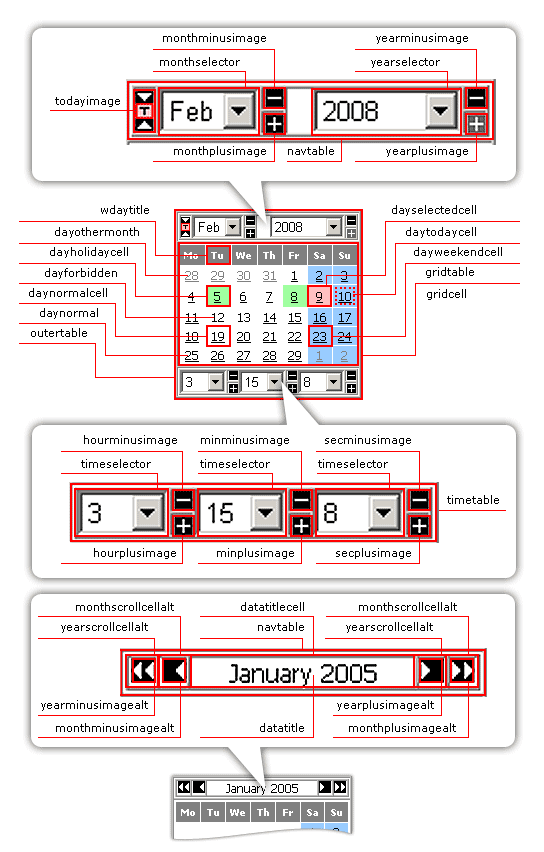
Note: To know how to manipulate calendar control set, please, refer to Control Set section.
Subkeys added for above figured keys should correspond to tag type the key is linked to:
| Key | Tag | Key | Tag | Key | Tag | Key | Tag | |||
|---|---|---|---|---|---|---|---|---|---|---|
| apminusimage | <img> | applusimage | <img> | caliconhide | <img> | caliconshow | <img> | |||
| datacontrol | <input type="text"> | dayforbidden | <span> | daymarkedcell | <td> | daynormal | <a> | |||
| daynormalcell | <td> | dayothermonth | <a> or <span> | dayselectedcell | <td> | daytodaycell | <td> | |||
| dayweekendcell | <td> | disminusimage | <img> | displusimage | <img> | gridcell | <td> | |||
| gridtable | <table> | hourminusimage | <img> | hourplusimage | <img> | minminusimage | <img> | |||
| minplusimage | <img> | monthminusimage | <img> | monthplusimage | <img> | monthscrollcell | <td> | |||
| monthselector | <select> | monthselectorcell | <td> | navtable | <table> | outertable | <table> | |||
| pixel | <img> | secminusimage | <img> | secplusimage | <img> | timeselector | <select> | |||
| timetable | <table> | todaycell | <td> | todayimage | <img> | wdaytitle | <td> | |||
| yearminusimage | <img> | yearplusimage | <img> | yearscrollcell | <td> | yearselector | <select> | |||
| yearselectorcell | <td> | yearminusimagealt | <img> | yearplusimagealt | <img> | disyearminusimagealt | <img> | |||
| disyearplusimagealt | <img> | monthminusimagealt | <img> | monthplusimagealt | <img> | dismonthminusimagealt | <img> | |||
| dismonthplusimagealt | <img> | datatitlecell | <td> | datatitle | <span> | |||||
Example of customizing calendar elements outlook: all days of current month have to be of black color on a white background, no underlining is required for numbers, and day cell has to be of width of 20 pixels. Calendar Scope Setting structure fragment for the task will look like the following:
  // Other calendar scope setting here
  // Now customizing cell tag for each day of current month
  'daynormalcell': {
    // background has to be white
    'bgcolor': 'white',
    // width of the cell is 20
    'width':   20
  },
  // Now customizing text for each day of current month
  'daynormal' : {
    // text color has to be black, no underlining
    'style' : 'color: black; text-decoration: none'
  }
  // Other calendar scope setting here
Use of CSS classes and defining their names as values of class subkeys for certain keys of calendar scope setting structure can benefit in even more flexibility while customizing calendar outlook. If turning back to the above example, it is also possible to define font settings for current month days in a separate CSS class:
<style>
  .calCurMonthDay {
    /* text color has to be black */
    color: black;
    /* no underlining */
    text-decoration: none
  }
</style>
and then specify that class name to be applied to current month days in a calendar:
  // Other calendar scope setting here
  // Now customizing text for each day of current month
  'daynormal' : {
    // class name is calCurMonthDay
    'class' : 'calCurMonthDay'
  }
  // Other calendar scope setting here
Carrying CSS specifications to separate classes also helps to avoid Netscape 4.x misbehavior, because there is a crash probability for those browsers when rendering style modifiers of HTML tags.
Calendar control set consists of select-boxes and images that allow user to change date and/or time calendar returns. Above figure shows how those controls are aligned on the within calendar area.

Calendar controls can not be moved within calendar area, only certain ones can be either displayed or not.
The control set can be divided into two control groups:
Date Controls are always displayed on the calendar. Time Controls are displayed only if calendar date/time format is specified as a value for dataformat key, Calendar Initial Setting Structure, requires a presence of hours, i.e. contains H or h chars.
Also H character in date/time format string edicts absence of am/pm select control and am/pm step buttons and presence of second select control and second step buttons on the calendar. h character in date/time format string switches am/pm select control and am/pm step buttons displaying on and prevents displaying of second select control and second step buttons.
Tigra Calendar PRO script is ready for localization. This means that if you want it to be adopted to some national specific then it will not be a problem. You can easily define:
| What is to be changed | Location and Notes | |
|---|---|---|
| Date/time format | value for dataformat key, Calendar Initial Settings Structure | |
| Date/time format constants and messages | by default (in product distribution package) are declared in ARR_STRINGS variable, cal_strings.js files in every mode folder | |
| long names of weekdays | long_days key of ARR_STRINGS | |
| short names of weekdays | short_days key of ARR_STRINGS | |
| long names of months | long_month key of ARR_STRINGS | |
| short names of months | short_month key of ARR_STRINGS | |
| A template for error message to be displayed when entered date contains wrong month name. | bad_month key of ARR_STRINGS An inclusion of %month_name substring will be replaced with wrong month name |
|
| Error message to be displayed if formname key of Calendar Initial Settings Structure has not been specified | need_form_name key of ARR_STRINGS | |
| A template for error message to be displayed if HTML form named as formname key of Calendar Initial Settings Structure says can not be found in an document. | form_not_found key of ARR_STRINGS An inclusion of %form_name substring will be replaced with the name of the form searched |
|
| A template for error message to be displayed if date entered goes after upper date limit for the calendar (maxdate key of Calendar Initial Settings Structure). | max_date key of ARR_STRINGS An inclusion of %max_date substring will be replaced with maximum date allowed |
|
| A template for error message to be displayed if date entered goes before lower date limit for the calendar (mindate key of Calendar Initial Settings Structure). | min_date key of ARR_STRINGS An inclusion of %max_date substring will be replaced with maximum date allowed |
|
| Error message to be displayed if data entered does not meet date/time format (dataformat key of Calendar Initial Settings Structure) | not_meet key of ARR_STRINGS | |
| A template for error message to be displayed if date entered is forbidden (list of forbidden dates is specified as forbidden key of Calendar Initial Settings Structure). | forbidden key of ARR_STRINGS An inclusion of %forbidden_date substring will be replaced with the date entered |
|
| Titles of months | value for months key, Calendar Scope Settings Structure | |
| Day of week titles | value for weekdays key, Calendar Scope Settings Structure | |
| First day of the week | value for weekstart key, Calendar Initial Settings Structure (1 means Mo, 0 means Su) | |
Note: "date entered" does not include "date clicked".
Default ARR_STRINGS variable declaration looks in the following way:
var ARR_STRINGS ={
  'long_days' : ['Sunday', 'Monday', 'Tuesday', 'Wednesday', 'Thursday', 'Friday', 'Saturday'],
  'short_days' : ['Sun', 'Mon', 'Tue', 'Wen', 'Thu', 'Fri', 'Sat'],
  'long_month' : ['January', 'February', 'March', 'April', 'May', 'June', 'July',
    'August', 'September', 'October', 'November', 'December'],
  'short_month' : ['Jan', 'Feb', 'Mar', 'Apr', 'May', 'Jun',
    'Jul', 'Aug', 'Sep', 'Oct', 'Nov', 'Dec'],
  'bad_month' : 'Parsing error: unknown month "%month_name"',
  'need_form_name' : 'Form name is required parameter of draw method',
  'form_not_found' : "Form with name '%form_name' can't be found in the document",
  'max_date' : 'Dates after %max_date are not allowed',
  'min_date' : 'Dates before %min_date are not allowed',
  'not_meet' : 'Warning: Input date does not meet input date format',
  'forbidden' : 'Date %forbidden_date is forbidden'
}
This series of the examples demonstrates an usage with Calendar Control Calls Handling Key described above. These examples are placed form ease to complex. Please, pay attention to comments in the examples and explanation after each one.
Example 1(On-page mode calendar). Redirect output date value form calendar to custom text box.
<html>
<head>
	<title>Calendar On-page simple example</title>
	<script language="JavaScript" src="cal_strings.js"></script>
	<!--Calendar Scope Settings Structure file. It should be exist.-->
	<script language="JavaScript" src="cal_acal.js"></script>
	<script language="JavaScript" src="calendar.js"></script>
</head>

<body>
<form name="a_form">
<table cellpadding="0" cellspacing="0" border="0" align="center" >
<tr><td bgcolor="#4682B4">
	<table cellspacing="1" border="0">
<tr>
	<td bgcolor="#FFFFFF" align="center">
<!--The text box with name 'abc' to receive a date value from the calendar control-->
		<input type="text" name="abc" id="abc">
	</td>
</tr>
<tr>
	<td bgcolor="#FFFFFF">
	<script language="JavaScript">
	// Calendar Initial Setting Structure
	var CAL_INIT = {
		// Control Set Appearance structure. No meaning in this example.
		'nocontrols' : {
		'nohour'			: true,
		'nominute'			: true,
		'nosecond'			: true,
		'notoday'			: true,
		'noothermonthday'	: true,
		'noampm'			: true
		},
		//There is no sense to define picttype for On-page mode calendar, because
		//the calendar in the mode have no interactive element.
		//'picttype'		: 'others',
		//The 'controlname' key assign the 'abc' text box control to receive
		//a date value.
		//Important! The receiving control must be defined "before" the 'new calendar(CAL_INIT,CAL_TPL)' call.
		'controlname'		: 'abc', // assigns 'abc' control to receive date from calendar
		// A form name where calendar should appears.
		'formname'			: 'a_form',
		'dataformat'		: 'm/d/Y h:i a'
	};
	new calendar(CAL_INIT,CAL_TPL)
	</script>
	</td>
</tr>
</table>
<td><tr>
</table>
</form>
</body>
</html>
This example demonstrates how to show picked calendar date in a custom text box. The important notice are:
Example 2(Modal mode calendar). Redefine an calling control
<html>
<head>
	<title>Calendar Modal Example</title>
	<script language="JavaScript" src="cal_strings.js"></script>
	<!--Calendar Scope Settings Structure file. It should be exist.-->
	<script language="JavaScript" src="cal_tpl1.js"></script>
	<script language="JavaScript" src="calendar.js"></script>
</head>
<body>

<form name="a_form">
<table cellpadding="0" cellspacing="0" border="0" align="center" >
<tr><td bgcolor="#4682B4">
	<table cellspacing="1" border="0">
	<tr>
		<td bgcolor="#FFFFFF">Modal Calendar</td>
	</tr>
<tr>
	<td bgcolor="#FFFFFF">
	<!--The image with name 'a_button' will be a calling control for a calendar.
	'onclick' method defines which calendar will be opened.
	It's important to define source of the image equal to value that defined in
	'caliconshow' structure key 'src' in Calendar Scope Settings Structure file.
	-->
		<img src="img/cal.gif" name="a_button" id="a_button" onclick="A_CALENDARS[0].showcal()">
	</td>
</tr>
<tr>
	<td bgcolor="#FFFFFF">
<script language="JavaScript">
var CAL_INIT = {
		// Control Set Appearance structure. No meaning in this example.
		'nocontrols': {
		'nohour':          true,
		'nominute':        true,
		'nosecond':        true,
		'notoday':         true,
		'noothermonthday': true,
		'noampm':          true
	},
	// The 'picttype' key defines that custom control
	//to call a calendar will be image
	'picttype':            'img',
	//The 'pictname' key assign the 'a_button' image to be
	//a calling control for calendar.
	//Important! The calling control must be defined "before"
	//the 'new callender(CAL_INIT,CAL_TPL)' call.
	'pictname':            'a_button',
	'formname':            'a_form',
	'dataformat':          'm/d/Y h:i a'
};

new calendar(CAL_INIT, CAL_TPL1);
</script>
	</td>
</tr>
</table>
<td><tr>
</table>
</form>
Required code for Modal mode calendar. See Modal Calendar Creation section
<script language="JavaScript">
for (var i = 0; i < A_CALENDARS.length; i++)
  A_CALENDARS[i].create();
</script>
</body>
</html>
This example demonstrates how to redefine an element that calling a calendar. The important notice are:
Example 3(Modal mode calendar). Redefine an calling control type and position to show calendar
<html>
<head>
	<title>Calendar Modal Example 3</title>
	<script language="JavaScript" src="cal_strings.js"></script>
	<!--Calendar Scope Settings Structure file. It should be exist.-->
	<script language="JavaScript" src="cal_tpl1.js"></script>
	<script language="JavaScript" src="calendar.js"></script>
</head>
<body>

<form name="a_form">
<table cellpadding="0" cellspacing="0" border="0" align="center" >
<tr><td bgcolor="#4682B4">
	<table cellspacing="1" border="0">
	<tr>
		<td bgcolor="#FFFFFF">Modal Calendar</td>
	</tr>
<tr>
	<td bgcolor="#FFFFFF" align="center">
	<!--The button with name 'a_button' will be a calling control for a calendar.
	'onclick' method defines which calendar will be opened.
	-->
		<input type="button" name="a_button"
		id="a_button" onclick="A_CALENDARS[0].showcal()" value="Calendar" >
	</td>
</tr>
<tr>
	<td bgcolor="#FFFFFF" align="center">
	<!--The text box with name 'abc' to receive
	a date value from the calendar control-->
		<input type="text" name="abc" id="abc">
	</td>
</tr>
<tr>
	<td bgcolor="#FFFFFF" align="center">
	<!--The image with name 'cal_position' is
	used to display a calendar panel-->
		<img src="sun.gif" name="cal_position" id="cal_position">
	</td>
<tr>
</table>
<td><tr>
</table>
// Calendar Initial Setting Structure
var CAL_INIT = {
	// Control Set Appearance structure. No meaning in this example.
		'nocontrols': {
		'nohour':          true,
		'nominute':        true,
		'nosecond':        true,
		'notoday':         true,
		'noothermonthday': true,
		'noampm':          true
	},
	//The 'controlname' key assign the 'abc' text box control to receive
	//a date value.
	//Important! The receiving control must be defined "before" the 'new calender(CAL_INIT,CAL_TPL)' call.
	'controlname':         'abc',
	// The 'picttype' key defines that custom control
	//to call a calendar will be button
	'picttype':            'button',
	//The 'pictname' key assign the 'a_button' image to be
	//a calling control for calendar.
	//Important! The calling control must be defined "before"
	//the 'new calender(CAL_INIT,CAL_TPL)' call.
	'pictname':            'a_button',
	'positionname':        'cal_position',
	'formname':            'a_form',
	'dataformat':          'm/d/Y h:i a'
};

new calendar(CAL_INIT, CAL_TPL1);
</script>
</form>
Required code for Modal mode calendar. See Modal Calendar Creation section
<script language="JavaScript">
for (var i = 0; i < A_CALENDARS.length; i++)
  A_CALENDARS[i].create();
</script>
</body>
</html>
This example demonstrates how to show picked calendar date in a custom text box. The important notice are:
The example below shows how and where to define the 'nocontrol' structure:
<html>
<head>
  <script language="JavaScript" src="cal_strings.js"></script>
  <script language="JavaScript" src="cal_acal.js"></script>
  <script language="JavaScript" src="calendar.js"></script>
</head>
<body>
<form name="acal_form">
	<script language="JavaScript">
	// A new 'nocontrol' structure example demonstrates how to use
	// various 'nocontrol' keys. Specifically, the calendar will be
	// displayed without today button, hour select control, minute
	// select control, second select control and am/pm select control
	var CAL_INIT = {
		'nocontrols' : {
			'nomonth':         false,
			'noyear':          false,
			'nohour':          true,
			'nominute':        true,
			'nosecond':        true,
			'notoday':         true,
			'noothermonthday': false,
			'noampm':          true
		},
		// a type of control element
		'picttype':            'others',
		// assigns 'abc' control to receive date from calendar
		'controlname':         'abc',
		'formname':            'acal_form',
		'dataformat':          'm/d/Y h:i a'
	};
	//Call the calendar
	new calendar(CAL_INIT,CAL_TPL)
	</script>
</form>
</body>
</html>
Note:The example assumes that your have a cal_acal.js file with defined CAL_TPL structure and all required calendar files.
The example demonstrates how to display tree modal calendars on a same page.
<html>
<head>

	<script language="JavaScript" src="cal_tpl1.js"></script>
	<script language="JavaScript" src="cal_strings.js"></script>
	<script language="JavaScript" src="calendar.js"></script>
	<!-- define the view of calendar with css rules -->
	<link rel="stylesheet" href="calendar.css">

<style>
	a
		{color: #0000aa; text-decoration: none; font-family: Tahoma, Verdana; font-size: 11px}
	A:hover
		{color: #ff0000;}
	p, tr, td,ul, li
		{color: #000000; font-family: Tahoma, Verdana; font-size: 11px}
	.header1, h1
		{color: #ffffff; background: #4682B4; font-weight: bold; font-family: Tahoma, Verdana;
		font-size: 13px; margin: 0px; padding: 2px;}
	.header2, h2
		{color: #000000; background: #DBEAF5; font-weight: bold; font-family: Tahoma, Verdana; font-size: 12px;}
	.intd
		{color: #000000; font-family: Tahoma, Verdana; font-size: 11px; padding-left: 15px;}
</style>
</head>
<body>
<center>
<body bottommargin="15" topmargin="15" leftmargin="15" rightmargin="15" marginheight="15" marginwidth="15"
bgcolor="white">
<form name="test_form">

<table cellspacing="0" cellpadding="0" width="100%" border="0">
	<tr>
	<td align="right"><font face="tahoma, verdana" size="2">Select date and time:  </font></td>
	<td>
	<script language="JavaScript">
		var CAL_INIT1 = {
			'formname':   'test_form',
			'dataformat': 'd.m.Y H:i',
			'replace':    true
		};
		//First calendar
		new calendar(CAL_INIT1, CAL_TPL1);
	</script>
	</td>
	</tr>
	<tr>
	<td align="right"><font face="tahoma, verdana" size="2">Select date and time:  </font></td>
	<td>
		<script language="JavaScript">
		// initial calendar settings structure
			var CAL_INIT2 = {
				'formname':   'test_form',
				'dataformat': 'd.m.Y H:i',
				'replace':    true
			};
			//Second calendar
			new calendar(CAL_INIT2, CAL_TPL1);

		</script>
	</td>
	</tr>
	<tr>
	<td align="right"><font face="tahoma, verdana" size="2">Select date and time:  </font></td>
	<td>
		<script language="JavaScript">
		// initial calendar settings structure
			var CAL_INIT2 = {
				'formname':   'test_form',
				'dataformat': 'd.m.Y H:i',
				'replace':     true
			};
			//Third calendar
			new calendar(CAL_INIT3, CAL_TPL1);

		</script>
	</td>
	</tr>
</table>

</form>


<script language="JavaScript">
for (var n = 0; n < A_CALENDARS.length; n++) {
	A_CALENDARS[n].create();
}
</script>
</body>
</html>
Note:The example assumes that your have a cal_acal.js file with defined CAL_TPL structure and all required calendar files.
<html>
<head>
	<title>JavaScript Calendar</title>
	<meta name="description" content="Javascript Calendar - cross browser date picker control">
	<script language="JavaScript" src="cal_tpl1.js"></script>
	<script language="JavaScript" src="cal_strings.js"></script>
	<script language="JavaScript" src="calendar.js"></script>
	<script language="JavaScript">
	/*
		This function is called every time when visitor has clicked on any calendar's date.
		The function is get three parameters:
			1st. Zero based calendar index;
			2nd. The clicked date in the following format:
				three letter weekday
				tree letter month
				day
				hours:minutes:seconds
				UTC time zone offset
				four digit year
				formed as whole string.
				For instance Wed Aug 18 00:00:00 UTC +300 2004
			3rd. The clicked date in amount milliseconds from 1 Jan 1970
	*/
	function myFunc2() {
		alert('arguments[0]
		'+arguments[0]+'\n
		arguments[1]
		'+arguments[1]+'\n
		arguments[2]
		'+arguments[2]);
	}

	/*
		The initial structure demonstrate how to handling onclick event on all dates in a calendar.
		Previously defined function myFunc2 will be used for handling click on any calendar date.
	*/
	var CAL_INIT1 = {
			'formname':      'test_form',
			'onclickday': {
				'func' : myFunc2
			},
			'dataformat':    'd-M-Y'


	};

	*/
	/*
		The initial structure demonstrate how to handling onclick event on a specific date.
		Previously defined function myFunc2 will be used for handling click on 18 Aug 2004.
	*/
	var CAL_INIT2 = {
			'formname': 'test_form',
			'onclickday': {
				'date' : {
					'18-Aug-2004': myFunc2
				}
			},
			'dataformat': 'd-M-Y'

	};

	/*
		The initial structure demonstrate how to handling onclick event on a specific date.
		Previously defined function myFunc2 will be used for handling click on every
		Saturday and Wednesday  in 2002 and 2005.
	*/
	var CAL_INIT3 = {
			'formname': 'test_form',
			'onclickday': {
				'func' : myFunc2,
				'year': ['2005','2002'],
				'weekday':['Sat','Wen']
			},
			'dataformat': 'd-M-Y'

	};

</script>
	<!-- define the view of calendar with css rules if needed -->
	<link rel="stylesheet" href="calendar.css">

</head>

<body bottommargin="15" topmargin="15" leftmargin="15" rightmargin="15" marginheight="15" marginwidth="15"
bgcolor="white">
<!-- Header -->
<center>
	<form name="test_form">

		<script language="JavaScript">
			new calendar(CAL_INIT1, CAL_TPL1);
		</script>
		<br>
		<script language="JavaScript">
			new calendar(CAL_INIT2, CAL_TPL1);
		</script>
		<br>
		<script language="JavaScript">
			new calendar(CAL_INIT3, CAL_TPL1);
		</script>

	</form>
<script language="JavaScript">
for (var n = 0; n < A_CALENDARS.length; n++) {
	A_CALENDARS[n].create();
}
</script>
</center>
</body>
</html>
<html>
<head>
	<title>JavaScript Calendar</title>
	<meta name="description" content="Javascript Calendar - cross browser date picker control">
	<script language="JavaScript" src="cal_tpl1.js"></script>
	<script language="JavaScript" src="cal_strings.js"></script>
	<script language="JavaScript" src="calendar.js"></script>
	<script language="JavaScript">
	/*
		This function is called every time when visitor has clicked on any date and/or selector of the first calendar.
		This function sets calendar2 date to calendar1 date.

	*/
	function  cal_func(){
		document.forms['test_form'].elements['control_2'].value =
		document.forms['test_form'].elements['control_1'].value;
	}


	var CAL_INIT1 = {
		'controlname' : 'control_1',
		'formname' : 'test_form',
		'onclickday': {
			'func' : cal_func
		},
		'onclickcontrol': {
			'year': cal_func,
			'month': cal_func,
			'hour': cal_func,
			'minute': cal_func,
			'ampm': cal_func
		},
		'dataformat' :  'd/m/Y h:i a',
		'watch': true

	};

	var CAL_INIT2 = {
		'controlname' : 'control_2',
		'formname' : 'test_form',
		'dataformat' :  'd/m/Y h:i a',
		'watch': true
	};


</script>
	<!-- define the view of calendar with css rules if needed -->
	<link rel="stylesheet" href="calendar.css">

</head>

<body bottommargin="15" topmargin="15" leftmargin="15" rightmargin="15" marginheight="15" marginwidth="15"
bgcolor="white">
<!-- Header -->
<center>
	<form name="test_form">

		<script language="JavaScript">
			new calendar(CAL_INIT1, CAL_TPL1);
		</script>
		<br>
		<script language="JavaScript">
			new calendar(CAL_INIT2, CAL_TPL1);
		</script>


	</form>
<script language="JavaScript">
for (var n = 0; n < A_CALENDARS.length; n++) {
	A_CALENDARS[n].create();
}
</script>
</center>
</body>
</html>
<html>
<head>
	<title>JavaScript Calendar</title>
	<meta name="description" content="Javascript Calendar - cross browser date picker control">
	<script language="JavaScript" src="cal_tpl1.js"></script>
	<script language="JavaScript" src="cal_strings.js"></script>
	<script language="JavaScript" src="calendar.js"></script>
	<script language="JavaScript">


	/*
		The initial structure demonstrate how to set alowed date.
		Only 05 Aug 2004 and 06 Aug 2004 is allowed.
	*/
	var CAL_INIT1 = {
			'formname':      'test_form',
			'allowed': {
				'date' : ['05-Aug-2004','06-Aug-2004']
			},
			'dataformat':    'd-M-Y'


	};

	/*
		The initial structure demonstrate how to set alowed period.
		Only Saturday and Wednesday  are allowed.
	*/
	var CAL_INIT2 = {
			'formname':      'test_form',
			'allowed': {
				'weekday':['Sat','Wen']
			},
			'dataformat':    'd-M-Y'


	};

	/*
		The initial structure demonstrate how to set forbidden period.
		Every  Saturday and Wednesday in every February and October and 05-Aug-2004 and 06-Aug-2004 are forbidden.
	*/
	var CAL_INIT3 = {
			'formname':      'test_form',
			'forbidden': {
				'weekday':['Sat','Wen'],
				'month': ['Feb', 'Oct'],
				'date' : ['05-Aug-2004','06-Aug-2004']
			},
			'dataformat':    'd-M-Y'
	};

	/*
		The initial structure demonstrate how to set marked period.
		Only in 2005 and 2002 - every  Saturday and Wednesday in every February and October  are marked.
	*/
	var CAL_INIT4 = {
			'formname':      'test_form',
			'marked' : {
				'month': ['Feb', 'Oct'],
				'weekday':['Sat','Wen'],
				'year': ['2005','2002']
			},
			'dataformat':    'd-M-Y'
	};


</script>
	<!-- define the view of calendar with css rules if needed -->
	<link rel="stylesheet" href="calendar.css">

</head>

<body bottommargin="15" topmargin="15" leftmargin="15" rightmargin="15" marginheight="15" marginwidth="15"
bgcolor="white">
<!-- Header -->
<center>
	<form name="test_form">

		<script language="JavaScript">
			new calendar(CAL_INIT1, CAL_TPL1);
		</script>
		<br>
		<script language="JavaScript">
			new calendar(CAL_INIT2, CAL_TPL1);
		</script>
		<br>
		<script language="JavaScript">
			new calendar(CAL_INIT3, CAL_TPL1);
		</script>
		<br>
		<script language="JavaScript">
			new calendar(CAL_INIT4, CAL_TPL1);
		</script>

	</form>
<script language="JavaScript">
for (var n = 0; n < A_CALENDARS.length; n++) {
	A_CALENDARS[n].create();
}
</script>
</center>
</body>
</html>
One Regular Tigra Calendar PRO script license gives the right to use one copy of the script file (calendar.js) within single domain boundaries.
| First Site URL | Second Site URL | Number of Licenses Required |
|---|---|---|
| http://www.domain.com/site_1/ | http://www.domain.com/site_2/ | one |
| http://www.domain1.com/ | http://www.domain2.com/ | two |
| http://subdomain1.domain.com/ | http://subdomain2.domain.com/ | two |
Developer license gives the right to include unlimited number of Tigra Calendar PRO instances in the products of license owner. Such kind of license is obtained automatically by those who has 9 or more regular licenses.
We offer 50% discount for the script starting from second license. To take advantage of this discount use the link sent with every order confirmation message.
Same discount initially applies to educational and religious organizations.
As owner of the Tigra Calendar PRO license You are allowed to configure the script in any possible way for use in Internet (public), Intranet (corporate) or offline application, however You are strictly NOT allowed (unless specifically authorized by SoftComplex.com) to:
You are entitled to free product upgrades and technical support for at least one year from the date of purchase. Technical support includes answers to script related questions via e-mail and/or Internet instant messaging services. Full calendar customization services are provided on customer's request at additional charge.
Should you violate these Terms and Conditions or any other rights of SoftComplex Inc., SoftComplex Inc. reserves the right to pursue any and all legal and equitable remedies against you without limitation.